Guide · Windows 10 & 11
How to record your screen
on Windows — three ways
Windows ships with two recorders of its own, each with a real limitation: one can't see your desktop, the other only exists on Windows 11. Here's how both work — and the option that records everything and ends in a share link.
The quick answer
Press Win + Alt + R.
The fastest built-in route is the Xbox Game Bar: press Win + Alt + R and Windows starts recording the app you're using, saving an MP4 to Videos → Captures. Despite the name, it works on any app, not just games.
The fine print: it records one app at a time — not your desktop, not File Explorer, and not a workflow that moves between windows. The options below go from simplest to most capable.
How it works
Option 1 — Xbox Game Bar (Windows 10 & 11)
Open the app you want to record
Game Bar records the active app. Press Win + G to open the overlay and check your mic and audio settings in the capture widget, or skip straight to the shortcut.
Start with Win + Alt + R
A small widget shows the recording is live. Talk over it with your mic if you enabled it — app audio can be captured too.
Stop and find the file
Press Win + Alt + R again or hit stop in the widget. The MP4 lands in Videos → Captures, ready to be trimmed elsewhere or uploaded by hand.
How it works
Option 2 — Snipping Tool recorder (Windows 11 only)
Open Snipping Tool in video mode
Launch the Snipping Tool and switch from the camera icon to the video-camera icon. This recorder is only available on Windows 11.
Draw the region
Select the part of the screen you want — unlike Game Bar, this can include the desktop and anything else inside the frame.
Record, stop, save
Hit record, do your thing, stop, and save the MP4 wherever you like. Sharing it is still on you.
The gap
Built-in tools record. They don't share.
Between them, the built-ins cover quick clips — but each has a hard edge. Game Bar can't record the desktop or follow you across windows; the Snipping Tool recorder doesn't exist on Windows 10. And both end the same way: with an MP4 on your disk that you still have to upload somewhere before anyone can watch it.
If the recording exists so someone else can see it, that upload step is the real cost — and it's the step a sharing-first recorder removes.
How it works
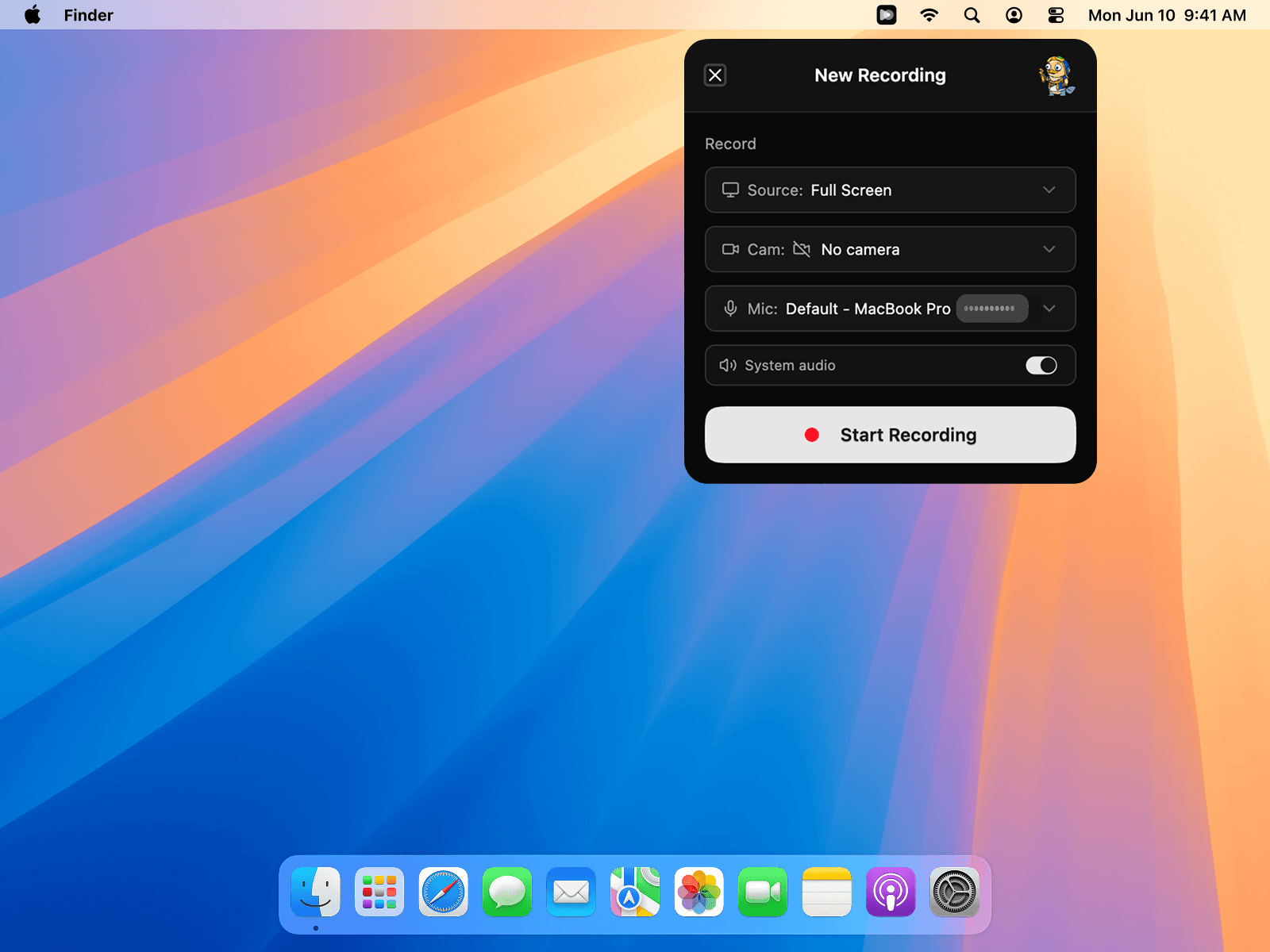
Option 3 — Qumra: record straight to a share link
Install and hit record
Download Qumra for Windows 10 or 11 (a standard .exe with automatic updates) and capture your full screen, one window, or a region — with system audio and your camera when you want them.
Stop — the link is ready
Uploading happens while you record, so the moment you stop, your share link is ready to paste anywhere. No file, no export, no waiting.
Let people watch and reply
Viewers open the link in any browser — no account or install — and can leave comments pinned to exact timestamps. Every recording is transcribed automatically.
Why the third option
What Qumra adds over the built-ins.
The whole desktop
Full screen, one window, or a region — on Windows 10 and 11 — and you can switch sources without stopping.
System audio included
Everything your PC plays is captured alongside your microphone, whatever you're recording.
A link, not an MP4
The upload happens during the recording. Stop, paste the link, done.
Automatic transcript
Every recording is transcribed, so it's skimmable as text and searchable later.
Comments at timestamps
Viewers reply at the exact moment they mean, turning a recording into a conversation.
Free to start
The free plan covers up to 30 recordings of 5 minutes each — enough to make it a habit.
FAQ
Frequently asked questions
How do I record my screen on Windows with sound?
Game Bar can capture the audio of the app it's recording plus your microphone — check the audio widget before you start. Qumra records full system audio (everything your PC plays) alongside your mic, whatever you're capturing, with no setup.
How do I record my whole desktop, not just one app?
Game Bar can't — it records a single app at a time and won't capture the desktop or File Explorer. On Windows 11 the Snipping Tool can record a region you draw. Qumra records the full screen, one window, or a region on both Windows 10 and 11, and lets you switch sources mid-recording.
Where do Game Bar recordings go?
Game Bar saves MP4 files to your Videos folder, in a subfolder called Captures. Qumra skips the file entirely — recordings upload to the cloud while you record, and you share a link instead.
Does Windows 10 have a built-in screen recorder?
Yes — the Xbox Game Bar (Win + G), which records one app at a time. The Snipping Tool's screen recording is a Windows 11 feature, so on Windows 10 your built-in option is Game Bar or a third-party recorder. Qumra supports both Windows 10 and 11 (x64).
How do I stop a screen recording on Windows?
Press Win + Alt + R again, or click the stop button in the capture widget that floats on screen while Game Bar records. In Qumra, stopping is also the moment your share link becomes ready, because the upload happened while you recorded.
Do the built-in recorders add a watermark or time limit?
No watermark on either built-in tool, and length is limited mainly by settings and disk space. Qumra recordings have no watermark; the free plan includes up to 30 recordings of 5 minutes each, and Premium ($14.99/month, 7-day free trial) removes the limits and adds full AI transcription and the video editor.
Keep exploring